I spent the better part of a Tuesday afternoon installing Frigate NVR in my basement homelab, and by the time I got the first detection alert on my phone, I realized I didn’t actually understand what was happening between the camera feed hitting my network and the smart notification firing. The system worked, sure, but the architecture was a black box. That bothered me enough to dig into it properly.
Frigate NVR isn’t just a dumb motion detector that records everything. It’s doing real-time object detection on video streams using either a Google Coral TPU or your CPU, then making intelligent decisions about what’s worth saving and what’s worth ignoring. That matters for your setup because it changes how you configure cameras, what hardware you need, and what you can realistically run on a Raspberry Pi versus a proper server.
The Core Architecture: How Data Flows Through Frigate
When I first read through the Frigate docs, I expected the flow to be straightforward: camera sends frames, Frigate detects objects, done. The actual flow is more interesting and involves at least three parallel processes that need to stay in sync.
Every frame from your camera enters Frigate through RTSP or HTTP. That stream gets decoded into raw pixel data. From there, the data splits into at least two paths simultaneously. One path goes directly to the video writer—the process that actually saves footage to your storage. The other path feeds into the detection pipeline. These run independently. Your detection can fall behind without blocking recording, which is important because detection is expensive computationally, and you don’t want a slow inference to cause you to drop frames.
The detection pipeline pulls frames at a configurable rate (I’m running 5 FPS for most cameras, sometimes 10 for the driveway) and passes them to the inference engine. That’s where the magic happens. The neural network model runs on either the Coral TPU if you have one, or your CPU if you don’t. Either way, the model outputs bounding boxes—basically “there’s a person at coordinates X, Y with 92% confidence.” Frigate then compares that output against your configured detection zones and object filters, decides whether anything is interesting, and triggers recordings or Home Assistant automations.
What surprised me: the detection and recording are so decoupled that if your inference engine gets overloaded and starts skipping frames, your recorded video never shows those skipped frames. From a storage perspective, you’re still getting complete, smooth recordings. The detection just gets less frequent. That’s by design, and it means Frigate degrades gracefully under load instead of getting choppy.
Inference Engines: Coral TPU vs CPU vs GPU
The inference engine is where your hardware choice matters most. Frigate uses YOLO (You Only Look Once) models by default, though you can swap in other object detection models if you want. The standard model is relatively lightweight—the tiny version is about 40 MB—but running inference on every frame at full resolution is still computationally brutal on a CPU alone.
A Google Coral TPU (Tensor Processing Unit) is a specialized chip designed specifically for inference. It runs the detection model in hardware acceleration. On my install, running a single 1080p camera stream at 5 FPS with a Coral TPU uses about 2-3% of my CPU and draws minimal power. The same setup on CPU alone would peg 40-60% of a modern quad-core processor. That’s the difference between “runs on a Raspberry Pi 4 with a Coral USB accelerator” and “needs a beefy NUC.”
The inference flow itself is straightforward in theory. Frigate loads the YOLO model into memory (or VRAM if you’re using GPU acceleration), then for each frame it wants to analyze, it resizes the frame to match the model’s input dimensions (usually 416×416 or 608×608), normalizes the pixel values, runs the inference operation, and gets back a list of detections with confidence scores. The whole operation on a Coral usually takes 10-50ms depending on the model size. On a CPU, expect 100-400ms.
I’m using a Coral USB accelerator because it was cheaper than rebuilding around a more powerful CPU, and honestly, the performance difference is substantial enough that I’d buy it again. But I’m aware that not everyone has $60 to drop on a dedicated accelerator, and Frigate absolutely works without one. It’s just slower, which means either fewer cameras, lower FPS detection, or higher detection latency.
Smart Recording and Event Storage
This is where Frigate stops being a generic NVR and becomes actually useful for a homelab. Most NVRs record everything continuously, and you dig through hours of footage if something happens. Frigate inverts that.
By default, Frigate doesn’t record at all unless there’s a detection. When the object detector sees something matching your configured classes (person, car, dog, package, etc.), it marks that time period as an “event.” Frigate then saves the relevant video clip to a dedicated event folder. Meanwhile, a completely separate “continuous” recording process can still run if you want it, capturing everything to a rolling buffer. You can configure this per-camera.
The storage math is almost absurd compared to continuous recording. A continuous HD camera feed is roughly 300 MB per hour. Four cameras running 24/7 is about 28 GB per day. In my setup with smart recording and 5-second pre-roll buffers on detections, I’m using about 150 GB per month across four cameras, mostly event video. That’s less than a week of continuous recording. My 4 TB drive went from “filling up in 5 months” to “probably good for two years.”
The event detection isn’t just about saving clips, though. Every detection gets logged with a timestamp, the detected object class, confidence score, and the frame that triggered it. Frigate stores this in a database (it defaults to SQLite, but you can use Postgres) and makes it queryable. So you can ask “show me every time a package was detected” or “alert me when a person is in the driveway between midnight and 6 AM.” That integrates directly with Home Assistant.
Prerequisites and Hardware Considerations
Before you even think about installing Frigate, you need cameras that output RTSP or HTTP streams. Onvif is ideal. Check the Frigate compatibility matrix—it’s maintained pretty well, but not every cheap IP camera works smoothly out of the box. I wasted an afternoon trying to get a Wyze camera working before I realized I needed to use RTMP-to-RTSP conversion, which added complexity I didn’t want.
Storage is the next question. You need at least 500 GB for a meaningful event library, probably a full TB or more if you’re running multiple cameras. SSD is nice for the database performance but not essential. I’m using a spare 4 TB mechanical drive and it’s fine.
For compute, the hardware requirement depends entirely on whether you’re using a Coral accelerator. With Coral: Raspberry Pi 4 (4GB minimum, 8GB preferable), NUC, or any modern x86 box works. Without Coral: expect to need a 6+ core CPU and 4-6 GB RAM per camera for smooth inference. The difference is dramatic enough that it shapes the entire decision tree of what hardware to buy.
Docker is the sensible way to run this. There are bare-metal install instructions, but I wouldn’t unless you have a reason. A basic Docker Compose setup looks like this:
version: '3.8'
services:
  frigate:
    image: ghcr.io/blakeblackshear/frigate:stable
    container_name: frigate
    privileged: true
    restart: unless-stopped
    ports:
      - "5000:5000"
      - "8554:8554"
      - "8555:8555/tcp"
      - "8555:8555/udp"
    environment:
      - FRIGATE_RTSP_PASSWORD=your_password
    volumes:
      - ./frigate/config:/config
      - ./frigate/storage:/media/frigate
      - type: tmpfs
        target: /tmp/cache
        tmpfs:
          size: 1gb
    devices:
      - /dev/bus/usb:/dev/bus/usb  # For Coral USB
    networks:
      - frigate

networks:
  frigate:
    driver: bridge
The key detail: that tmpfs mount for /tmp/cache. Detection outputs temporary files there, and using RAM instead of disk I/O speeds things up noticeably. The USB device mount is only needed if you have a Coral accelerator.
Configuration and Camera Setup
Once Frigate is running, the real work is configuration. The config file is YAML, and it gets complex quickly because you’re defining each camera, each detection zone, what objects to look for, recording strategies, etc.
A basic single-camera config entry looks like this:
cameras:
  front_porch:
    ffmpeg:
      inputs:
        - path: rtsp://user:[email protected]:554/stream
          roles:
            - detect
            - record
    detect:
      fps: 5
      width: 1280
      height: 720
    objects:
      track:
        - person
        - car
        - package
      filters:
        person:
          min_area: 1500
          max_area: 100000
          confidence: 0.7
    record:
      enabled: true
      retain:
        default: 7
        objects:
          person: 30
That config says: “For the front porch camera, pull video from this RTSP stream, run detection at 5 FPS on a 1280×720 resolution, track people/cars/packages, but ignore detections where the person is less than 1500 pixels (too small/far away) or less than 70% confident, keep event recordings of people for 30 days, everything else for 7 days.” Change any of those numbers wrong and your detection either becomes useless (too many false alerts) or misses things (too strict filters).
Finding the right thresholds takes trial and error. I spent a weekend tuning detection zones because my driveway camera was picking up reflections in windows as “people.” That’s where min_area and confidence filters come in—they’re coarse but surprisingly effective tuning levers.
Home Assistant Integration
Frigate integrates with Home Assistant through the official integration (or raw MQTT if you’re doing custom automation). Once configured, every detection event becomes an automation trigger in Home Assistant. You can set up notifications, turn on lights, unlock doors, whatever you want.
The integration exposes camera entities in Home Assistant, event triggers, sensor entities for detection counts, everything. I’ve got a simple automation that sends me a smartphone notification when a person is detected in my driveway, with a snapshot attached. Setting that up took about 10 minutes once Frigate was working.
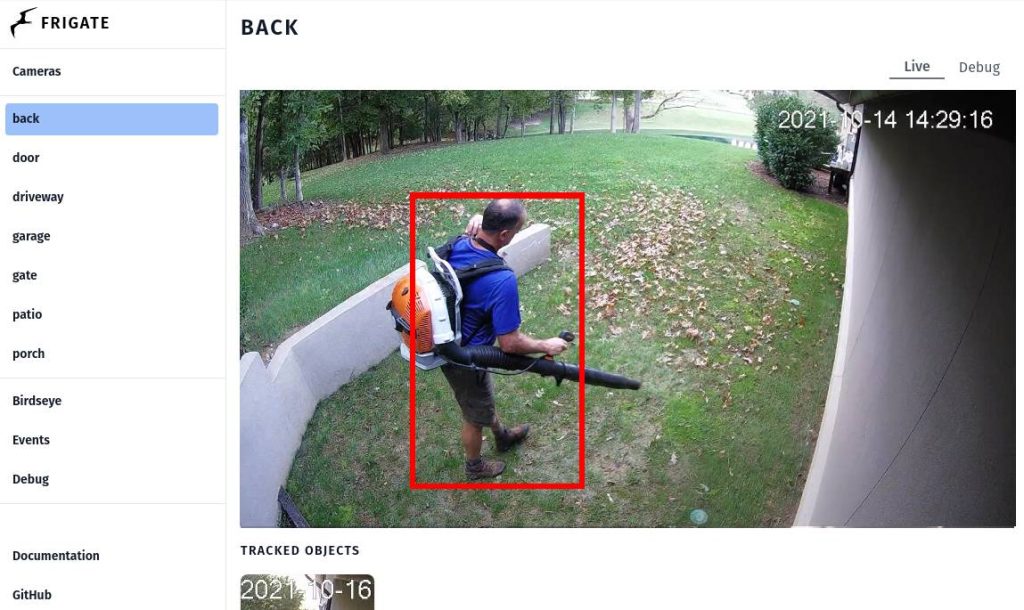
What I didn’t expect: the Frigate UI is actually quite nice. It’s not some janky hobbyist interface. You can browse events, look at statistics, see live detection overlays on the camera feed, review what the model is seeing in real time. That’s genuinely useful for debugging why detections are or aren’t firing.
Performance Tuning and Common Bottlenecks
My initial setup was slow. Detection was running at 2 FPS even though I configured 5 FPS. I had no idea what was wrong until I looked at the Frigate logs and saw inference times averaging 300ms. That screamed “CPU-bound.” I didn’t have the Coral plugged in properly—the USB driver wasn’t passing through to the Docker container.
Once I fixed that, inference dropped to 15-20ms and everything got smooth. That taught me that the Docker configuration details matter a lot. Passing through the Coral USB device isn’t automatic, and if it doesn’t work, you degrade to CPU inference without any obvious error message. You just see slow detections.
The other common bottleneck is network bandwidth. If your cameras are on WiFi or your network is saturated, RTSP streams get choppy, frame drops increase, and detection becomes unreliable. Running cameras on wired Ethernet improved things measurably in my setup. Still seems obvious in hindsight, but it’s worth stating explicitly.
Database performance is less common a problem but can happen. If you’re running 8+ cameras and storing months of detections, the SQLite database can slow down. Frigate will handle it gracefully, but you’ll notice the event browser getting sluggish. That’s when you consider migrating to Postgres, which isn’t hard but is another service to manage.
I’m considering that move for next year. For now, four cameras and about 60 days of events is fine on SQLite. The database file is maybe 200 MB at this point.
FAQ
Can Frigate NVR run on a Raspberry Pi?
Yes, but only reasonably with a Coral TPU accelerator. A Pi 4 with 8GB RAM and a Coral USB stick handles 2-3 camera streams at acceptable detection latency. Without Coral, it’s CPU-limited to maybe a single camera at low FPS. Newer Pi 5 is better but still not a primary target.
How much storage does Frigate NVR use?
Depends heavily on detection activity, but plan on 100-200 MB per hour per camera for event recordings. Continuous recording is 300+ MB per hour per camera. A 2TB drive stores roughly 4-6 months of event recordings for a 4-camera setup, or 2-3 weeks of continuous. More storage only helps.
What’s the difference between detection FPS and recording FPS?
Detection FPS controls how often Frigate analyzes frames for objects (typically 5-10 FPS). Recording FPS is the full camera frame rate stored to disk (usually 24-30 FPS). Detection doesn’t need to match recording; slower detection saves CPU while still capturing full-quality video.
Does Frigate NVR require an internet connection?
No. Frigate is completely local. It runs on your own hardware, accesses cameras on your local network, stores footage locally, and doesn’t phone home. Home Assistant integration is optional and also local-only.
Can I use Frigate NVR with non-IP cameras?
Not directly. Frigate works with cameras that output RTSP, RTMP, or HTTP streams. If you have analog cameras, you’d need an encoder. USB webcams technically work but aren’t practical for a security NVR setup.
Explore Frigate NVR in our AI Homelab Toolkit.