Setting up Runtipi Docker Compose for the first time felt like the right move for my homelab, but I quickly realized the docs assume you either know what you’re doing or you’re fine with defaults. I don’t trust defaults, especially when Runtipi is going to manage a dozen other services on your behalf. This is my actual configuration, the thinking behind each choice, and what I’d do differently if I started over.
What Runtipi Actually Does (and Why Config Matters)
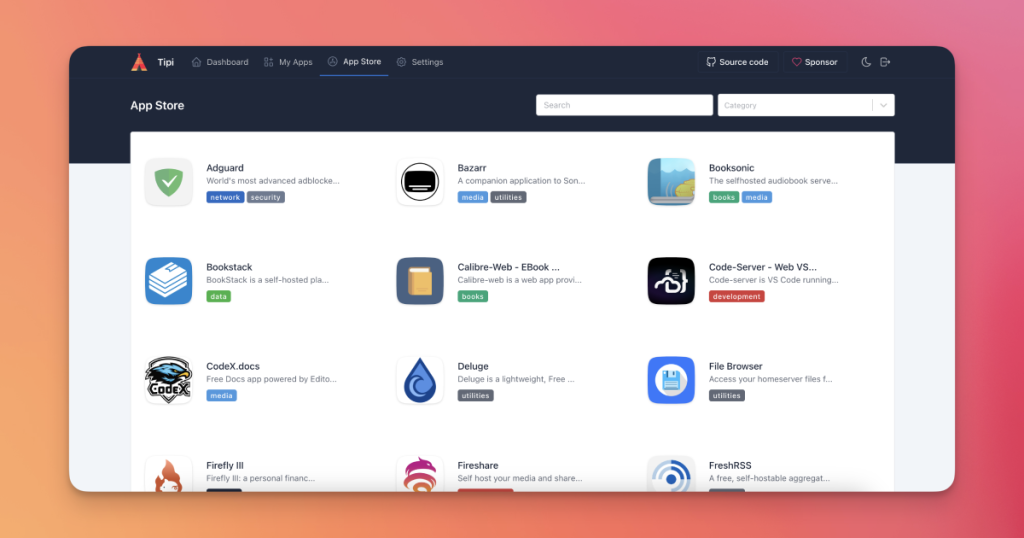
Runtipi is a one-click app store for self-hosted services. You point it at your hardware, it handles Docker, reverse proxy configuration, SSL certificates, and updates. In theory, you click “install Ollama” and five minutes later you have a local LLM running behind a secure reverse proxy. In practice, you need to think about networking, storage paths, resource limits, and security before you hit that first install button.
The reason I’m writing out my full config is that Runtipi’s own documentation is thin on the reverse proxy setup and doesn’t explain why certain environment variables matter. I’ve also hit some friction around persistent volumes and port conflicts that would’ve been obvious if I’d thought through the compose file first.
Prerequisites and Hardware
I’m running this on a single Intel NUC with 32GB RAM and a 2TB NVMe. Docker is already installed, I’m using Traefik as my reverse proxy (external to Runtipi), and I have a domain with wildcard DNS pointing to my home IP. If you’re starting from bare metal, get Docker and Docker Compose installed first. Runtipi will handle the rest.
You’ll want at least 8GB of RAM if you’re planning to run any AI models. 16GB is safer. Storage depends on what you’re installing—Ollama models alone can eat 10-20GB per model. I’ve allocated a separate 500GB partition just for Runtipi’s app data.
Base Docker Compose: The Core Stack
Here’s my compose file. I’ve stripped out some redundant services and added annotations for every choice I made.
version: '3.8'

services:
  runtipi:
    image: runtipi/runtipi:latest
    container_name: runtipi
    restart: unless-stopped
    ports:
      # Main web UI. Traefik will intercept this, but keeping it local for emergencies.
      - "3000:3000"
    volumes:
      # Docker socket so Runtipi can manage containers
      - /var/run/docker.sock:/var/run/docker.sock
      # App state and installed app configs
      - runtipi-data:/data
      # Where Runtipi stores app-specific persistent volumes
      - runtipi-apps:/root/tipi-apps
    environment:
      # Set this to your domain. Runtipi will generate correct reverse proxy rules.
      - DOMAIN=tipi.example.com
      # IP your server answers on inside the Docker bridge
      - TZ=UTC
      - PUID=1000
      - PGID=1000
      # I'm not using Runtipi's built-in reverse proxy; using external Traefik.
      # This tells Runtipi not to manage nginx itself.
      - NGINX_ENABLED=false
      # PostgreSQL for app state. Could be external, but simple enough to embed.
      - DATABASE_URL=postgresql://runtipi:runtipi@postgres:5432/runtipi
    depends_on:
      postgres:
        condition: service_healthy
    networks:
      - tipi
    labels:
      # Traefik autodiscovery labels
      - "traefik.enable=true"
      - "traefik.http.routers.runtipi.rule=Host(`tipi.example.com`)"
      - "traefik.http.routers.runtipi.entrypoints=websecure"
      - "traefik.http.routers.runtipi.tls.certresolver=letsencrypt"
      - "traefik.http.routers.runtipi.middlewares=auth@file"
      - "traefik.http.services.runtipi.loadbalancer.server.port=3000"
    healthcheck:
      test: ["CMD", "curl", "-f", "http://localhost:3000/health"]
      interval: 30s
      timeout: 10s
      retries: 3
      start_period: 40s

  postgres:
    image: postgres:15-alpine
    container_name: runtipi-postgres
    restart: unless-stopped
    volumes:
      - postgres-data:/var/lib/postgresql/data
    environment:
      - POSTGRES_USER=runtipi
      - POSTGRES_PASSWORD=runtipi
      - POSTGRES_DB=runtipi
    networks:
      - tipi
    healthcheck:
      test: ["CMD-SHELL", "pg_isready -U runtipi"]
      interval: 10s
      timeout: 5s
      retries: 5
    # Keep this private. Only Runtipi needs to talk to it.
    ports: []

volumes:
  runtipi-data:
    driver: local
    driver_opts:
      type: none
      # Point this to your main storage partition. I mount it at /mnt/tipi-data
      o: bind
      device: /mnt/tipi-data/runtipi
  runtipi-apps:
    driver: local
    driver_opts:
      type: none
      o: bind
      device: /mnt/tipi-data/apps
  postgres-data:
    driver: local
    driver_opts:
      type: none
      o: bind
      device: /mnt/tipi-data/postgres

networks:
  tipi:
    driver: bridge
A few things I spent time thinking about: The bind mounts to /mnt/tipi-data are deliberate. I want backups to be simple—just snapshot that entire partition. If Runtipi dies, I can rebuild the container and point it back at the same volumes. The NGINX_ENABLED flag is the big one. By default, Runtipi includes its own reverse proxy. I already have Traefik managing everything else in my homelab, so I disabled it and let Traefik handle the routing instead. This means one reverse proxy to debug, not two.
Environment Variables and .env File
Runtipi reads from a .env file if you prefer that to inline environment variables. Here’s my setup:
# .env for Runtipi
DOMAIN=tipi.example.com
TIMEZONE=UTC
PUID=1000
PGID=1000
NGINX_ENABLED=false
DATABASE_URL=postgresql://runtipi:runtipi@postgres:5432/runtipi

# Optional: if you want Runtipi to run behind a path instead of a subdomain
# (I don't recommend this; subdomains are cleaner)
# PATH_PREFIX=/tipi

# Debug logging. Turn this on if something's weird.
DEBUG=false
The PUID/PGID values matter if you’re running Runtipi on a system with strict permission controls. I set them to match my main user (1000 is standard on most Linux installs). Without this, Runtipi’s containers may struggle to read/write the mounted volumes.
Traefik Integration: Reverse Proxy Config
Since I disabled Runtipi’s built-in reverse proxy, I manage everything through Traefik. Here’s the relevant snippet from my Traefik static config:
# traefik.yml (static config)
api:
  insecure: true
  dashboard: true

entryPoints:
  web:
    address: ":80"
  websecure:
    address: ":443"

providers:
  docker:
    endpoint: "unix:///var/run/docker.sock"
    exposedByDefault: false
  file:
    filename: /etc/traefik/dynamic.yml
    watch: true

certificates:
  storage: acme.json

certificatesResolvers:
  letsencrypt:
    acme:
      email: [email protected]
      storage: acme.json
      httpChallenge:
        entryPoint: web
And the dynamic config for middleware and authentication:
# dynamic.yml (in /etc/traefik/)
http:
  middlewares:
    auth:
      basicAuth:
        users:
          - "admin:$apr1$abcd1234$5.encrypted.password"
        realm: "Runtipi"

    redirect:
      redirectScheme:
        scheme: https
        permanent: true

  routers:
    runtipi:
      rule: "Host(`tipi.example.com`)"
      entryPoints:
        - web
      middlewares:
        - redirect

tls:
  options:
    default:
      minVersion: VersionTLS12
Why basic auth? Runtipi itself has its own login, but I add a layer in front. If somehow a password is weak or there’s a zero-day in Runtipi’s auth, you still need to get past Traefik first. It’s defense in depth.
Resource Limits and Performance Tuning
Here’s where I almost made a mistake. By default, Docker containers have unlimited CPU and memory. If you install a resource-hungry app through Runtipi (like Stable Diffusion), it will happily consume everything your machine has and lock up the whole system. I added limits to the base Runtipi container and a note for Runtipi itself to enforce limits on child containers.
  runtipi:
    image: runtipi/runtipi:latest
    # ... rest of config above ...
    deploy:
      resources:
        limits:
          cpus: '4'
          memory: 4G
        reservations:
          cpus: '2'
          memory: 2G
The “limits” are hard caps; the container will be killed if it exceeds them. The “reservations” are soft guarantees—Docker tries to give it this much, but will share if the system needs it. For Runtipi itself, 4 CPUs and 4GB is enough; the actual AI workloads run in separate containers that Runtipi spawns.
One thing I discovered: Runtipi doesn’t enforce limits on the apps you install through it. If you install Ollama and run a 70B model, it will use as much RAM as it needs. Plan your hardware accordingly. I set up a separate cgroup limit on the entire docker daemon just to be safe, but that’s probably overkill.
First Run: Initialization and Secrets
When you bring up the compose stack, Runtipi will initialize the database and generate a default admin password. It prints this to the logs. You need to capture it or set it before running.
docker-compose -f docker-compose.yml up -d
docker-compose logs runtipi | grep -i "password|admin|token"
This is a surprisingly important step that the docs bury. If you don’t grab that password before restarting the container, you’ll have a harder time recovering it. I store mine in a secrets manager (I use Bitwarden), but even writing it down and stashing it somewhere safe is better than losing access to your own homelab app store.
The healthcheck I included will prevent the container from being marked as “ready” until the web UI actually responds. This means if you stack multiple services that depend on Runtipi being up first, they’ll wait for it properly. Without the healthcheck, Traefik might start routing traffic before Runtipi’s actually ready, causing 502s for a minute or two.
Backing Up and Restoring State
Because I’m using bind mounts to specific directories, backups are straightforward. I use restic to snapshot /mnt/tipi-data daily. The entire Runtipi state—installed apps, app configurations, database—lives there. If the container explodes, I just rebuild it and point it back at the same volumes.
# Backup script excerpt
restic backup /mnt/tipi-data
  --exclude='/mnt/tipi-data/apps/*/logs'
  --tag runtipi
I exclude the app logs because they’re big and not critical. The actual app state is in /mnt/tipi-data/apps/*/config, which I keep.
There’s one caveat: if you’re backing up while Runtipi is running and modifying files, you might catch an inconsistent state. For true safety, I should stop Runtipi before backing up. In practice, since my backups run at 2 AM and Runtipi’s mostly idle, I haven’t had issues. But it’s something to keep in mind.
Common Issues I Hit (and Fixed)
The first time I brought this up, the Runtipi container exited immediately with “permission denied on /var/run/docker.sock.” I was running as root in the compose file, but my user didn’t have Docker permission. Fixed by adding my user to the docker group, but then I had to be careful about PUID/PGID inside the container matching actual system users. It’s a bit of a rabbit hole.
The second issue: I initially tried to use Runtipi’s built-in reverse proxy and Traefik simultaneously, thinking they’d play nicely. They didn’t. Traefik would route to Runtipi, but Runtipi would try to route to itself, creating a loop. Setting NGINX_ENABLED=false solved it cleanly.
The third surprise was storage. I installed Ollama, downloaded a 7B model (about 4GB), then the next day tried to install Stable Diffusion’s base model and ran out of space. The error message from Runtipi was unhelpful—just “installation failed.” I had to dig through Docker logs to figure out what happened. Now I monitor /mnt/tipi-data pretty aggressively.
FAQ
Can I run Runtipi on a Raspberry Pi?
Yes, but barely. A Pi 4 with 8GB RAM can run Runtipi itself fine, but most of the interesting apps (Ollama, Stable Diffusion) are too heavy. You could install lightweight apps like Uptime Kuma or Immich’s backend. An older Pi with 4GB will struggle even with Runtipi’s web UI. If you want a Pi-based homelab, consider using Runtipi on a more capable machine and just running lightweight services on the Pi.
Does Runtipi work with external databases?
Yes. Instead of the embedded Postgres, you can point DATABASE_URL at any PostgreSQL server, including a managed database. I use the embedded version for simplicity, but if you want to run Postgres elsewhere (maybe on a NAS), you can. Just make sure the network can reach it and that the user/password are correct.
How much RAM do I need to run Runtipi with Ollama and Open WebUI?
Runtipi itself uses about 300MB. Open WebUI uses maybe 500MB. A small LLM (7B parameters) uses about 7-10GB depending on quantization. So realistically, 16GB minimum if you want a responsive system. 32GB is comfortable. Anything less and you’ll be swapping to disk, which makes everything slow.
Can I disable Runtipi’s automatic SSL and use my own certificates?
If you’re using an external reverse proxy (like I am with Traefik), SSL is handled by Traefik, not Runtipi. Set NGINX_ENABLED=false. If you want to use Runtipi’s reverse proxy but with custom certificates, you can mount your cert files into the container and configure them, but the docs on this are sparse and I haven’t tested it fully.
What happens if I restart the Runtipi container?
It reconnects to the same Postgres database and volumes, so all your installed apps and their configurations persist. The individual app containers themselves won’t restart unless they’re set to restart: unless-stopped. I’ve restarted Runtipi dozens of times without data loss. The only gotcha is if you change DOMAIN in the environment, Runtipi will regenerate all the reverse proxy rules, which could briefly break access to your apps.
One last thought: Runtipi is still being actively developed, which is good and bad. Good because bugs get fixed and new apps are added regularly. Bad because sometimes updates change how things work, and your carefully tuned config might need tweaking. I check the GitHub releases before updating and test in a staging environment first. It’s worth the five minutes of caution.
Explore Runtipi in our AI Homelab Toolkit.