I installed Runtipi on a spare Intel NUC last month expecting a frictionless app store experience. It mostly delivered, but I hit five distinct failures in the first week that sent me down some frustrating rabbit holes. The good news: they’re all fixable, and understanding what broke in each case actually teaches you something useful about how Runtipi orchestrates Docker underneath.
The Primary Permission Denied Error
First real blocker came about thirty minutes into the initial setup. I had cloned the Runtipi repository to my home directory, spun up the compose stack, and immediately watched the app-runner container die. The logs showed something like this:
permission denied while trying to connect to the Docker daemon socket at unix:///var/run/docker.sock
I was running as a regular user, not root, which is the right move for security. The problem is that Runtipi needs to talk to the Docker daemon to spin up services on demand, and by default only the root user and members of the docker group have that socket access.
The fix was straightforward but important to understand: I had to add my user to the docker group.
sudo usermod -aG docker $USER
Then log out completely and back in. Not just open a new terminal—actually log out of the session. The group membership takes effect on fresh login, and half-measures won’t work. I made that mistake and spent fifteen minutes thinking the command had failed.
What surprised me is that Runtipi’s initial setup didn’t warn about this. It just failed silently in the logs. A more polished first-run experience would check for docker group membership and fail loudly with instructions, but instead I had to dig through container logs to understand what happened.
Port 8282 Already in Use
By the next morning I’d deleted and redeployed the stack a couple times testing different configurations. The third attempt failed immediately with a bind error:
Error response from daemon: Bind for 0.0.0.0:8282 failed: port is already allocated
Runtipi’s reverse proxy (it uses Traefik under the hood) was trying to grab port 8282 for the web interface, but something else was holding it. I checked what was listening:
sudo ss -tulpn | grep 8282
Turned out a zombie container from my previous failed deployment was still there, not running but not fully removed either. Docker doesn’t automatically clean up everything when a compose stack crashes.
The real lesson here: before redeploying Runtipi, nuke the old setup completely.
cd /path/to/runtipi
docker compose down -v
docker system prune -a --volumes
The -v flag removes volumes, which you want if you’re starting fresh. The system prune clears dangling images and containers. This isn’t Runtipi’s fault—it’s Docker compose behavior—but it caught me off guard because I assumed a failed deployment would clean itself up.
Insufficient Disk Space During App Installation
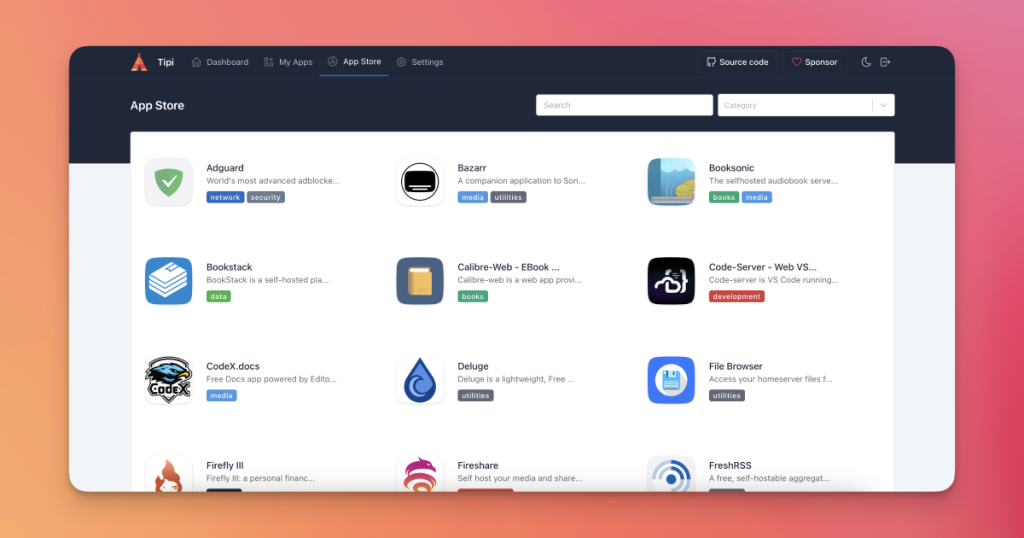
Once the dashboard loaded, I started installing apps. Ollama went fine. Open WebUI installed without complaint. But when I tried to deploy Stable Diffusion on the same machine, the container exited immediately with almost no logs in the Runtipi UI.
I had to dig into the actual container logs:
docker logs runtipi-app-stable-diffusion-1
The real error was buried near the bottom:
no space left on device
The Stable Diffusion base images and model weights are huge—easily 8-10 GB. My test machine only had 20 GB available, and between Ollama, Open WebUI, and various system containers, I’d run out of room.
Runtipi doesn’t warn you about disk space requirements before deploying apps, which feels like an oversight. Each app in the store should probably show an estimated size. I freed up space by removing Ollama (didn’t really need two LLM setups), and Stable Diffusion deployed successfully after that.
The takeaway: check your df -h before installing anything heavy, and understand that containerized machine learning tools need real storage.
Database Connection Refused on Reboot
A few days in, I rebooted the machine to apply kernel updates. Everything came back up, but Runtipi’s dashboard was throwing 500 errors and Open WebUI couldn’t connect to its database. The app-runner logs mentioned:
Error: connect ECONNREFUSED 127.0.0.1:5432
PostgreSQL wasn’t listening. Docker containers had restarted, but they came up in the wrong order. The database container needed a few seconds to initialize before the application containers tried to connect, and the restart race condition meant apps were firing before postgres was ready.
Runtipi handles this with health checks and restart policies in the compose file, but the timing was still tight. A manual fix was simple enough:
docker compose restart
Waiting a full minute this time for all services to settle. Faster restart command—just restart instead of down/up—and everything came online in the right sequence.
The real solution here is making sure your docker compose file includes proper depends_on declarations with service_healthy conditions, or in Runtipi’s case, ensuring the default health check timeouts are generous enough. On slower hardware or under load, the default 30-second window can be tight.
Environment Variable Parsing in Custom Configs
I wanted to customize a few apps with environment variables for API keys and configuration. Runtipi lets you pass these through the .env file or by editing the service configs. But when I tried to pass a value with special characters (a base64-encoded API key with slashes), the container would fail to start with an unhelpful error message.
The problem was shell escaping. The value needed to be quoted properly in the docker-compose override, or it wouldn’t parse correctly:
API_KEY="base64+encoded/value=="
Without the quotes, the forward slashes and plus signs confused the YAML parser. This isn’t really a Runtipi bug—it’s standard Docker behavior—but the error message from the container didn’t make this obvious. I had to manually inspect the running config with docker inspect to see what values actually made it through.
The lesson is that Runtipi’s UI for setting environment variables is convenient, but for anything complex, you’re better off editing the compose file directly and understanding YAML escaping rules.
When to Blame the Tool Versus the Environment
Four of these five problems had nothing to do with Runtipi itself. They were Docker basics, disk management, and Linux permissions. The one that was actually Runtipi’s responsibility—not warning about disk space before deploying—is minor compared to how much it does handle. The reverse proxy configuration, the app orchestration, the update mechanism, all of that works reliably once the foundation is solid.
What I actually respect about Runtipi is that it doesn’t hide what’s happening underneath. You can see the docker-compose files, inspect the running containers, debug things with standard Docker commands. It’s not a black box that promises to solve everything; it’s a reasonably thin orchestration layer on top of Docker that saves you from writing boilerplate. That honesty is worth more than a polished UI that breaks in ways you can’t fix.
The other thing worth noting: most of these issues resolved within a few minutes once I understood what was actually failing. The debugging process taught me more about Docker health checks, volume management, and container orchestration than I learned from months of reading documentation. That’s not a coincidence.
FAQ
Can Runtipi run on a Raspberry Pi?
Technically yes, but don’t expect great performance. A Pi 4 with 4 GB RAM can run lightweight services like Vaultwarden or Mealie, but memory-heavy apps like Stable Diffusion or large language models will either crash or make the whole system unusable. A Pi Zero doesn’t have enough resources to bother with.
How much RAM does Runtipi need?
Runtipi itself uses very little—under 200 MB. But the apps you install are the real consumers. A basic setup with Ollama, Open WebUI, and a couple utility containers needs at least 8 GB to run comfortably. 16 GB is much safer if you’re running multiple AI tools or databases simultaneously.
Does Runtipi require internet to function?
No, once deployed and running, Runtipi works fully offline. The only time you need internet is during initial setup (to pull Docker images) and when installing or updating apps. The actual services run locally without phoning home or checking for updates automatically.
Can I move a Runtipi installation to a different machine?
Yes, but you’ll need to copy the entire Runtipi directory including the .env file and the data folder. Docker volumes attached to services will need separate migration. The easier approach is to reinstall on the new machine and redeploy apps—it only takes a few minutes per app.
Does Runtipi work with existing Docker containers?
Partially. Runtipi manages services deployed through its app store and compose file. You can run other Docker containers alongside it without conflict, but Runtipi won’t manage them or include them in its backup/restore process. Keep that in mind if you’re mixing Runtipi with other self-hosted services.
Explore Runtipi in our AI Homelab Toolkit.